

Your First AI Model
Let’s train a simple text classification model that can detect positive vs negative sentiment in text. This tutorial takes about 10 minutes and works on any computer.New to AI Training? Check out the Interactive Wizard Guide for a more detailed walkthrough, including how to choose models, understand dataset sizes, and use wizard commands.
Before You Start
Make sure you’ve installed AI Training. You should be able to run:Choose Your Path
We’ll show the same task two ways. Pick the one you’re comfortable with:- Interactive Wizard
- Command Line
- Python API
Using the Interactive Wizard
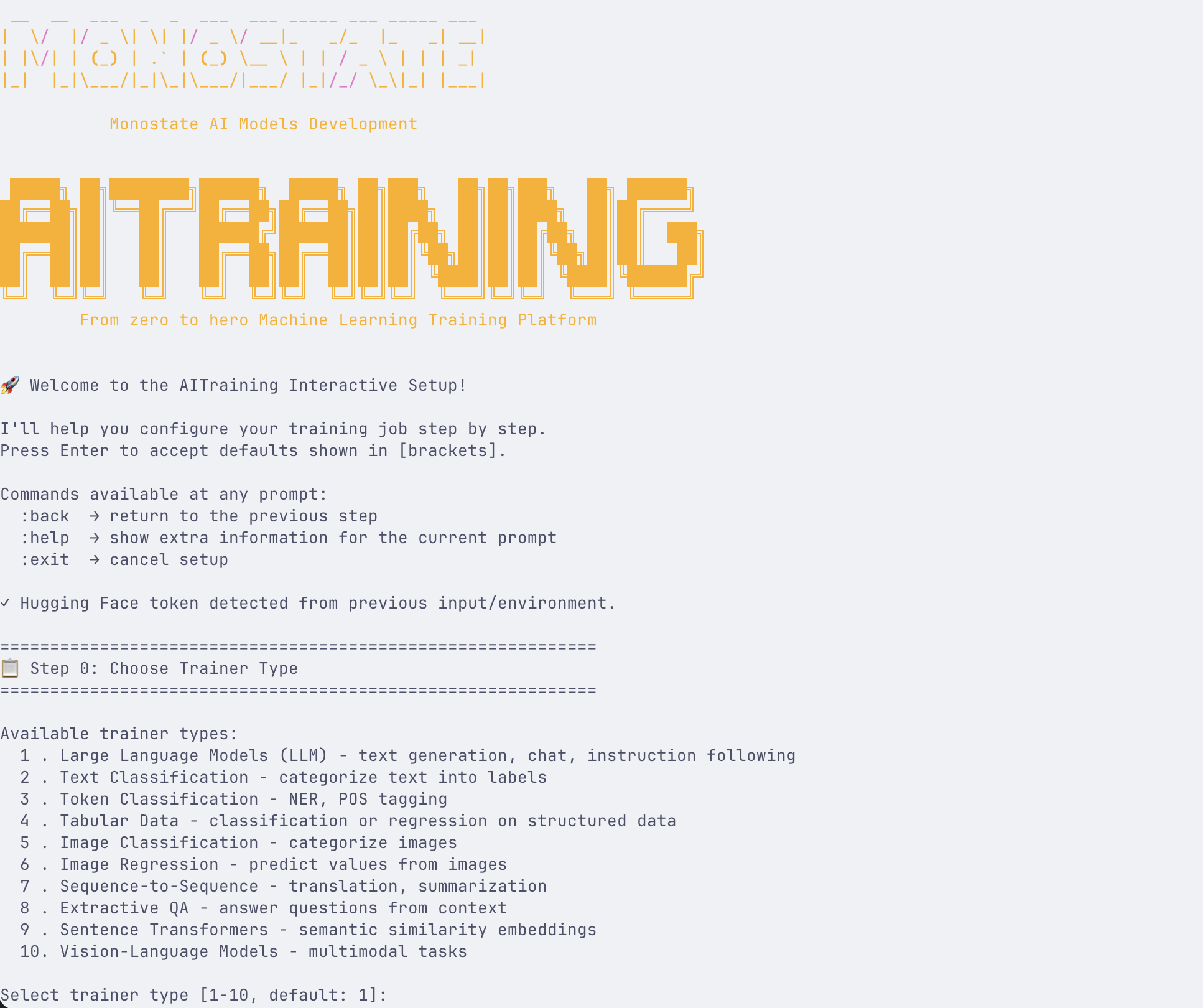
1. Start the Wizard
Open your terminal and run:2. Select Task Type
Choose Text Classification from the menu.3. Prepare Your Data
Create a simple CSV file calledreviews.csv:4. Follow the Prompts
The wizard will ask for:- Data path: Enter
./reviews.csv - Model: Choose
bert-base-uncased(or pick from trending models) - Text column: Enter
text - Label column: Enter
label - Output directory: Enter
./my-sentiment-model
:help- Get help for current step:back- Go back to previous step:exit- Cancel and exit:search <query>- Search for models/datasets:sort <option>- Sort by trending, downloads, likes
5. Start Training
Confirm your settings and training begins. Watch the progress in the terminal.6. Test with Chat
After training, test your model:localhost:7860 and try your model.What Just Happened?
You’ve successfully:- Prepared data - Created examples for the AI to learn from
- Configured training - Selected a model and settings
- Trained a model - The AI learned patterns from your examples
- Tested predictions - Verified the model works on new text
- Saved the model - Can use it anytime without retraining
Understanding the Results
Your model learned to:- Recognize positive words and phrases
- Identify negative sentiment patterns
- Make predictions on text it hasn’t seen before
Common Next Steps
Add More Data
More examples = better accuracy. Try adding 50-100 examples per category.
Try Different Models
Experiment with different base models like
distilbert-base-uncased (faster) or roberta-base (more accurate).Fine-tune Settings
Adjust epochs, learning rate, and batch size for better results.
Deploy Your Model
Learn how to serve your model as an API or integrate it into applications.
Try Other Tasks
Now that you understand the basics, try these:- Language Generation - Train a chatbot with conversation examples
- Image Classification - Sort images into categories
- Named Entity Recognition - Extract names, places, dates from text
- Translation - Convert between languages
Troubleshooting
Training is very slow
Training is very slow
- Reduce batch size to 4 or 2
- Use a smaller model like
distilbert - Ensure you’re using GPU if available
Model predictions are wrong
Model predictions are wrong
- Add more training examples
- Ensure labels are consistent
- Try training for more epochs
- Check if your data is balanced
Out of memory errors
Out of memory errors
- Reduce batch size
- Use a smaller model
- Enable gradient checkpointing
- Use LoRA for efficient training
What’s Next?
- Understanding AI Training - Learn how training works
- Choosing Your Interface - Detailed comparison of UI, CLI, and API
- Model Types - Explore different model architectures
- Advanced Techniques - Learn about DPO, ORPO, and more
Pro Tip: Start with the interactive wizard (
aitraining) to understand the concepts, then move to CLI for automation, and test your models with the Chat interface (aitraining chat).