

Chat Interface Overview
The chat interface provides a simple way to interact with your trained models.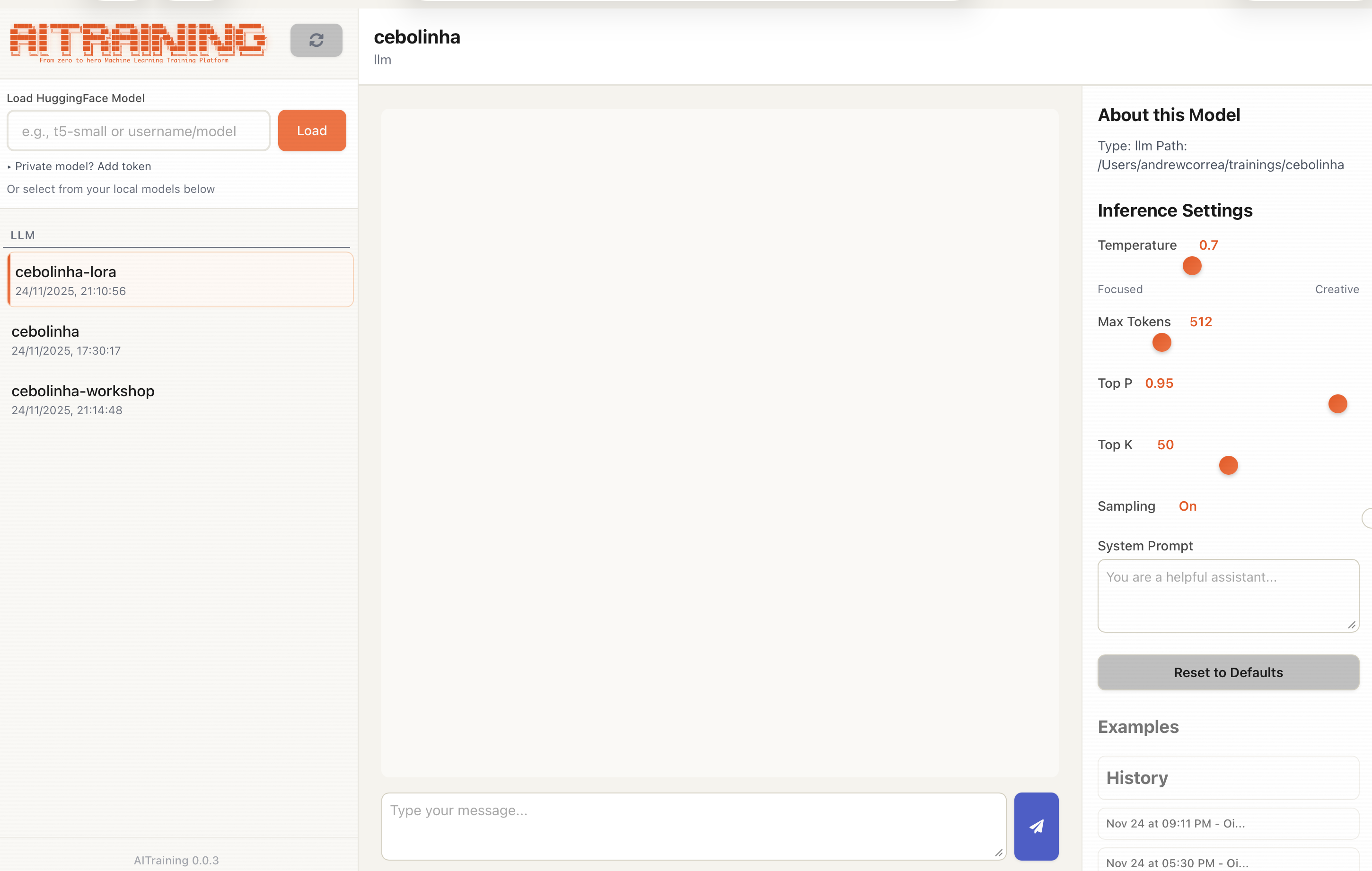
Interface Layout
When you open the chat interface, you’ll see:- Model selector - Choose which model to chat with
- Chat area - Conversation history and input
- Settings panel - Adjust generation parameters
Main Components
Model Selector
At the top, select your model:- Enter a local path to your trained model
- Or use a Hugging Face model ID (e.g.,
meta-llama/Llama-3.2-1B)
Chat Area
The main conversation area:- Message input - Type your messages here
- Send button - Submit your message
- Conversation history - See previous messages and responses
Settings Panel
Adjust how the model generates responses:- Max tokens - Maximum response length
- Temperature - Creativity vs consistency (0.0 - 2.0)
- Top-p - Nucleus sampling threshold
- Top-k - Limit token choices
- Do Sample - Toggle sampling vs greedy decoding
- System Prompt - Set system instructions for the model
Basic Usage
- Load a model - Enter model path and click Load
- Type a message - Write in the input box
- Send - Press Enter or click Send
- Read response - Model generates a reply
- Continue - Keep the conversation going
Tips
For Testing Fine-tuned Models
- Start with prompts similar to your training data
- Test edge cases and unusual inputs
- Compare responses to base model
For Finding Best Parameters
- Start with temperature 0.7 for balanced output
- Lower temperature (0.3) for more consistent answers
- Higher temperature (1.0+) for creative/varied responses
For Demos
- Prepare a few good example prompts
- Set parameters before the demo
- Clear conversation history between examples
Keyboard Shortcuts
| Shortcut | Action |
|---|---|
| Enter | Send message |
| Shift+Enter | New line in message |